
reMarkable Paper Pro with Book Folio in a Long-Term Review – When Digital Paper Makes Everyday Life Quieter
- Writing, reading, and working without the usual screen-related commotion
- The crucial misunderstanding: Fewer functions are not a deficiency
- A device that quickly becomes secondary after unpacking
- The Canvas Color display: Color without a carnival
- Front lighting without a glowing board in front of the face
- The Marker Plus: The actual input device
- Many pens without a drawer full of writing instruments
- Meetings: Fewer barriers and better attention
- Lectures: Between note-taking and concentration
- In a café: Large, but not impractical
- Book Folio: Protection without complicated mechanics
- Around 240 grams more, but considerably greater stability
- Materials and signs of everyday use
- Editing documents directly instead of commenting separately
- PDF and EPUB: Native, but not without limits
- Comics on electronic paper
- Windows and macOS: Integration instead of awkward file acrobatics
- Paper Pro and Paper Pure: Two devices, one shared body of work
- Performance and rapid wake-up
- Regular updates as part of the product
- Battery life: Weeks rather than daily charging
- No IP rating: A valid point of criticism
- Amazon Kindle: Practical, but not essential
- What the Paper Pro does not attempt to replace
- The price of concentration
- Verdict: The strongest argument is that it is packed voluntarily
- Transparency notice in accordance with EU requirements:
Writing, reading, and working without the usual screen-related commotion
The reMarkable Paper Pro belongs to that rare category of devices whose qualities do not reveal themselves during a brief benchmark run. Processor performance, refresh rate, or the longest possible list of installable applications play only a secondary role here. What matters instead is whether the digital paper is still packed voluntarily after several weeks, whether it genuinely simplifies meetings, and whether a technically interesting product develops into a natural everyday working tool. These questions formed the basis of an extended practical review of the Paper Pro, the Marker Plus, and the Book Folio.
The field test extended far beyond the home office. The Paper Pro accompanied numerous meetings, several lectures, appointments in cafés, and those everyday situations in which a conventional notebook may be more powerful but also feels unnecessarily cumbersome. A laptop needs space, demands attention, and quickly creates a small technological barrier between the people involved in a conversation. The Paper Pro, by contrast, rests on the table like a large notebook. It does not flash impatiently, report incoming messages, or attempt to accommodate a video, three chats, and a calendar appointment at the same time.
At first, this reduction may sound like a limitation. In everyday use, however, it develops into the most important feature of the entire device. The Paper Pro does not attempt to replace a tablet in the conventional sense. Instead, it takes on the tasks that paper has handled remarkably well for centuries and adds synchronization, search functions, layers, colors, digital pens, and considerably better organization. The result is not a stripped-down iPad, but a specialized writing and reading system with a clearly defined purpose.
The crucial misunderstanding: Fewer functions are not a deficiency
Comparing the Paper Pro with conventional tablet categories quickly leads in the wrong direction. Anyone expecting app stores, video conferencing, streaming services, games, or a full web browser will inevitably be disappointed. The device offers neither the openness of an Android tablet nor the enormous range of software available on an iPad. Yet this is precisely where the central idea behind the product becomes apparent.
Modern computers are technically excellent at handling several tasks simultaneously. That does not mean the human mind possesses the same capability. During a meeting, a single incoming notification is enough to interrupt a train of thought. A quick check of the inbox turns into five minutes, those five minutes lead to a discussion about a completely different issue, and at some point the meeting notes are sitting behind an open browser containing eleven tabs. Several of them no longer have any recognizable connection to the original task.
The Paper Pro prevents this escalation not through complicated concentration modes, but through absence. There are simply no social networks, no permanently visible messages, and no app store demanding attention. The device behaves more like a well-organized filing cabinet with a writing surface. This deliberately restricted architecture is highly suitable for a digital detox without abandoning digital work entirely.
The term digital detox often sounds like a radical escape from technology. With the Paper Pro, the concept works in a far more pragmatic way. Documents remain digital, notes are synchronized automatically, and files are available across several devices. Only the distracting aspects of a typical tablet disappear. The result is not a return to the analogue age, but a deliberate selection of useful digital functions.
A device that quickly becomes secondary after unpacking
During the first encounter, the Paper Pro impresses with its unusually slim construction, precisely manufactured metal frame, and expansive display surface. Measuring 274.1 × 196.6 millimetres, with a thickness of 5.1 millimetres and a weight of around 525 grams, it feels closer to a premium writing pad than to a conventional mobile computer. The 11.8-inch Canvas Color display operates at 2,160 × 1,620 pixels and reaches a pixel density of 229 pixels per inch. Up to 20,000 colors can be displayed.
These figures explain the construction, but not yet its character. The Paper Pro does not feel like a thin tablet that happens to support a pen. The display, frame, Marker, and software have clearly been developed as a coherent system. The wider grip area on the left makes the device easier to hold, while the remaining display borders are deliberately kept narrow. The asymmetrical design provides clear orientation and prevents the writing surface from being constantly touched while carrying the device.
After a few days, the hardware pleasantly loses some of its initial fascination. That sounds more negative than intended. A good working tool moves into the background behind the task itself. A fountain pen is not admired before every sentence either. It rests in the hand and writes. This is exactly where the Paper Pro becomes convincing: the technology remains present, but it does not continually force itself into the foreground.
The Canvas Color display: Color without a carnival
The color display is one of the most important differences compared with monochrome reMarkable models. Even so, it does not transform the Paper Pro into a conventional multimedia tablet. Colors appear more restrained, more matte, and significantly less saturated than on an LCD or OLED panel. Anyone expecting a vividly colored comic image with maximum contrast may initially experience a small culture shock. After a short adjustment period, however, it becomes clear that the subdued presentation suits the overall concept extremely well.
The colors are more reminiscent of colored pencils, highlighters, and colored newsprint. Red does not shout, blue does not glow like a status LED, and yellow genuinely resembles a mark on paper. This characteristic is especially well suited to diagrams, annotated documents, sketches, and structured notes. Different subject areas can be separated visually without making the page resemble an overloaded presentation slide.
When writing, the display does not always render individual colors immediately in their final form. During input, lines may briefly look different and only assume their intended color after the display refreshes. This process is part of the panel’s operating principle and becomes particularly noticeable with larger colored areas. After some practice, the effect loses its initially irritating nature. Color does not follow the spontaneous speed of an OLED panel, but the calmer rhythm of electronic paper.
The large surface makes the greatest difference when working with PDF documents. Pages require less frequent zooming, margin notes have sufficient room, and tables remain easier to read. For academic material, technical manuals, or lecture notes, this matters far more than theoretically higher color saturation. The display does not perform its task spectacularly, but purposefully.
Front lighting without a glowing board in front of the face
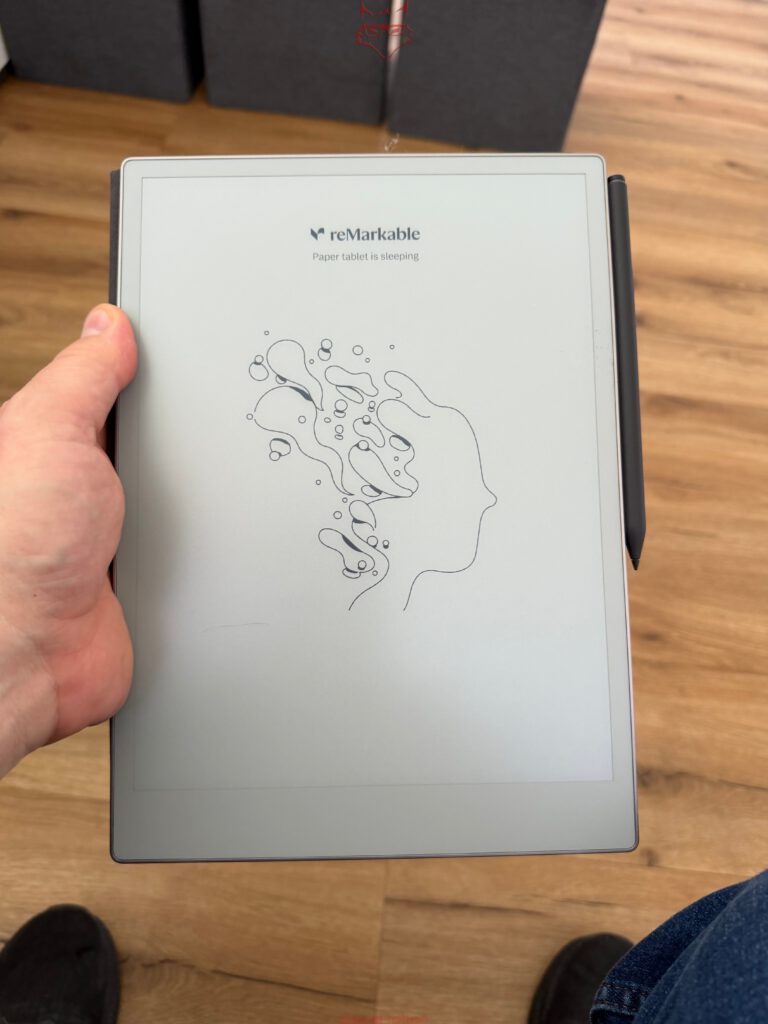
The Paper Pro includes adjustable reading illumination. Technically, this is not conventional backlighting, since electronic paper is not illuminated from behind like an LCD. Instead, an integrated front light distributes illumination across the display surface. This largely preserves the paper-like impression.
In bright rooms and daylight, the lighting often remains switched off entirely. The panel uses ambient light in a manner similar to printed paper and appears particularly natural under good lighting conditions. In a darkened room, during a late lecture, or in a poorly illuminated corner of a café, the practical value of the integrated light becomes clear. The Paper Pro remains readable without flooding the room with a bright rectangle.
The illumination is considerably more restrained than on many e-book readers. This may initially appear conservative, but it protects the character of the device. Software updates have expanded the available options and added features such as an additional Light Boost mode. reMarkable is therefore not merely correcting minor faults, but actively improving everyday usability.
Even at higher intensity, the light remains subdued. A dark room does not suddenly turn into an office, and the display still resembles illuminated paper rather than a shining screen. This is pleasant for concentrated reading. It would be unsuitable for color-critical image editing, though that task belongs to the intended use about as much as editing a feature film on a pocket calculator.
The Marker Plus: The actual input device
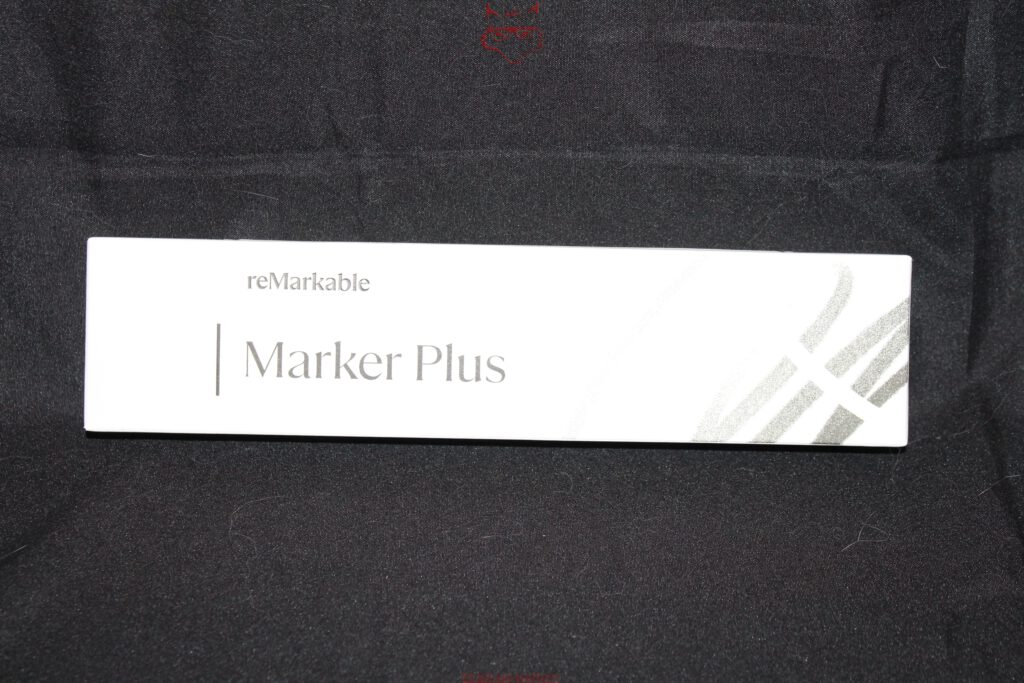
A digital note-taking system stands or falls with its pen. Poor latency, a slippery surface, or imprecise lines are enough to make even excellent software unattractive. The Marker Plus is therefore not merely an accessory, but forms the core of the Paper Pro together with the display.
The pen feels well balanced in the hand and already conveys a considerably more premium impression through its weight than many lightweight plastic styluses. The tip creates noticeable resistance on the textured display. This resistance does not replicate paper perfectly, but it comes close enough for the sensation to stop feeling like a technical imitation after a short period of use.
The input becomes especially convincing during longer writing sessions. Individual words can be entered reasonably well with almost any sufficiently precise stylus. Several pages reveal whether the hand starts to cramp, whether lines lag behind the tip, or whether the surface creates unpleasant friction. The Paper Pro handles such sessions with considerable confidence. Latency remains low, palm rejection and pressure levels work reliably, and even rapid margin notes do not look like digital foreign objects added afterward.
The rear end of the Marker Plus functions as an eraser. This feature may sound insignificant, but it changes the workflow. Instead of searching for an icon in the toolbar, the pen is simply turned around and the incorrect area removed. The action mirrors a familiar movement and requires no conscious technical decision. Details like this ensure that the interface is not constantly perceived as an interface.
The Marker attaches magnetically to the right-hand side of the device. The connection remains reliable during stationary use. For transport, the Book Folio provides additional security, preventing the pen from disappearing loose inside a bag. A stylus without a fixed transport position otherwise develops remarkable skills. It reliably finds the darkest corner of a backpack, where two USB adapters, an old receipt, and a single unidentified key already live.
Many pens without a drawer full of writing instruments
The software provides several digital writing tools. These include a ballpoint pen, fineliner, pencil, mechanical pencil, marker, highlighter, and calligraphy-oriented variants. Different line widths and colors further expand the selection. The tools do not differ only in name. Their lines respond differently to pressure, speed, and tilt.
The ballpoint pen is suitable for quick notes and meeting minutes. The fineliner produces more consistent lines and feels more controlled when drawing diagrams. The pencil makes greater use of pressure and shading, while the highlighter emphasizes content without completely covering the text beneath it. This provides enough variation for sketches, even though the Paper Pro is not intended to replace a dedicated graphics tablet.
The selection remains manageable. A conventional drawing program may support hundreds of brushes, but even the thought of such a library contradicts the reduced concept. The Paper Pro supplies enough tools for handwriting, sketching, and document editing without turning the toolbar into a hardware store.
The option to quickly recall recently used pens is particularly useful. Switching between a black fineliner, a colored highlighter, and the eraser is fast. During a lecture, this speed determines whether an important point is captured or ends as half a sentence. Lecturers occasionally develop the remarkable ability to deliver the most important thought at twice the usual speed.
Meetings: Fewer barriers and better attention
During meetings, the Paper Pro revealed one of its greatest strengths. An open notebook computer almost inevitably creates distance. The screen hides part of the other person, the keyboard distracts through noise, and from the outside it remains unclear whether notes are being taken or the inbox is being checked in secret. A Paper Pro lies flat or at a slight angle on the table and looks more like a notebook.
This difference changes the atmosphere. Eye contact is maintained more often, spontaneous sketches emerge more quickly, and information can be recorded without keyboard noise. In smaller discussion groups in particular, the device feels less intrusive. There is no raised screen demanding attention and no cooling fan deciding to imitate a small storm shortly before an important statement.
Meeting notes can later be moved, supplemented, and organized into appropriate folders. Pages may be duplicated or rearranged. An unstructured set of notes can therefore become a usable record without requiring the entire content to be typed again. Handwritten sections remain intact, while additional layers or markings help clarify connections.
The search and organization functions do not replace a comprehensive document management system, but they are sufficient for personal workflows. Consistent filing remains essential. Even a digital filing cabinet becomes confusing once every folder is called “New,” “New 2,” or “Important final really final.” The Paper Pro provides the tools, but fortunately does not take naming entirely out of human hands.
Lectures: Between note-taking and concentration
During lectures, the Paper Pro benefits from its large writing surface. Presentations or scripts can be transferred as PDF files in advance and annotated directly during the session. This eliminates the constant switching between printouts, a notebook, and a laptop. Definitions can be highlighted, formulas added, and margin notes placed directly beside the relevant content.
This context is particularly valuable with complex subjects. A note reading “relevant for the exam” is of little use once it is no longer clear a few days later which of the 86 slides it referred to. When written directly into the document, the annotation remains in place. Arrows, colors, and handwritten additions turn the original script into a personalized working version.
The writing surface is large enough for mathematical derivations, mind maps, or schematic illustrations. At the same time, the device still fits on typical university desks, which occasionally resemble narrow shelves rather than proper work surfaces. Together with the Book Folio, the Paper Pro rests securely and hardly shifts while writing.
The lack of distractions becomes especially beneficial during longer sessions. A laptop theoretically offers access to supplementary literature. In practice, that access often ends with emails, messages, or a spontaneous search to discover why an actor in a television series suddenly looks different. The Paper Pro prevents such detours from developing in the first place.
In a café: Large, but not impractical
A café is a surprisingly demanding test environment. Tables are small, drinks sit dangerously close to electronics, and lighting conditions range from direct sunlight to decorative gloom. The Paper Pro also performed well in this setting, although its 11.8-inch surface cannot be described as compact.
The advantage lies in its flat construction. The device requires no additional depth for a keyboard or display angle. It can rest beside a cup while leaving sufficient room for other documents. The Book Folio protects the surfaces and prevents direct contact with the table. Once opened, the entire writing area is immediately available.
The rapid wake-up from standby contributes significantly to everyday usability. The difference between one and five seconds may appear insignificant on a specification sheet. During a conversation, however, every additional moment of waiting feels longer. The Paper Pro is ready to use quickly after opening the Folio or pressing the button. A thought does not need to wait politely while the operating system sorts out its mood.
Handling liquids remains a more critical issue. The Paper Pro does not carry an official IP rating. A spilled glass of water should therefore not be interpreted as an experimental durability test. This matters more during mobile use than at a desk. However, an iPad generally does not offer an officially stated level of water resistance for such scenarios either. Even so, basic protection against splashes would be very welcome in a mobile writing device.
Book Folio: Protection without complicated mechanics
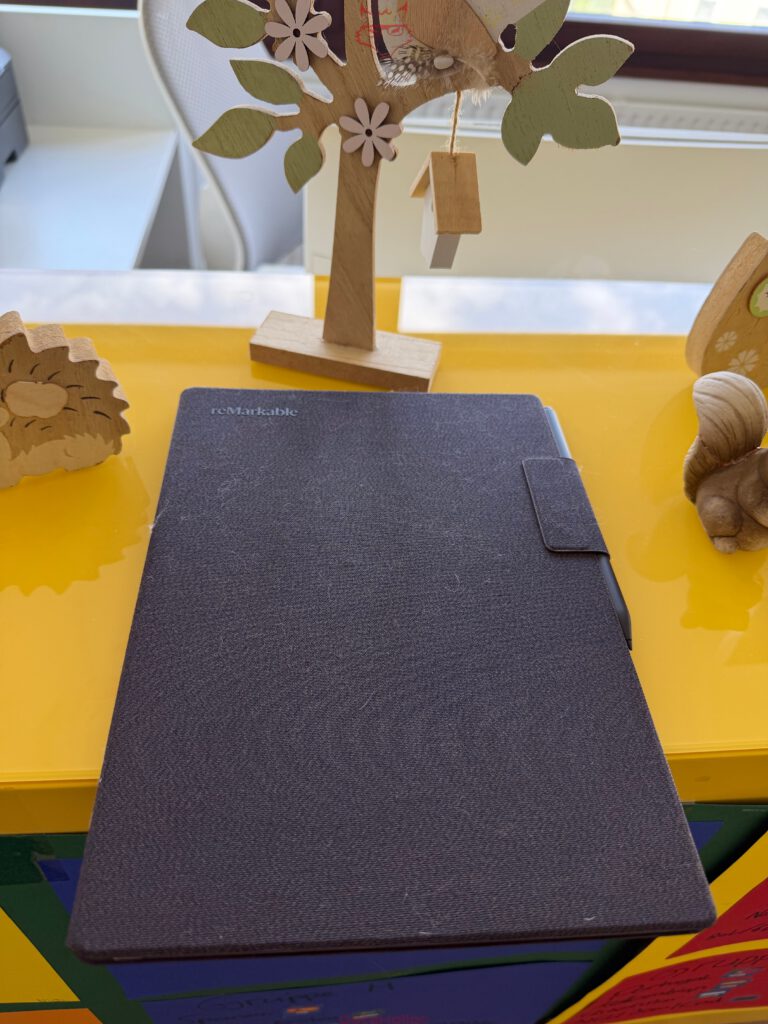
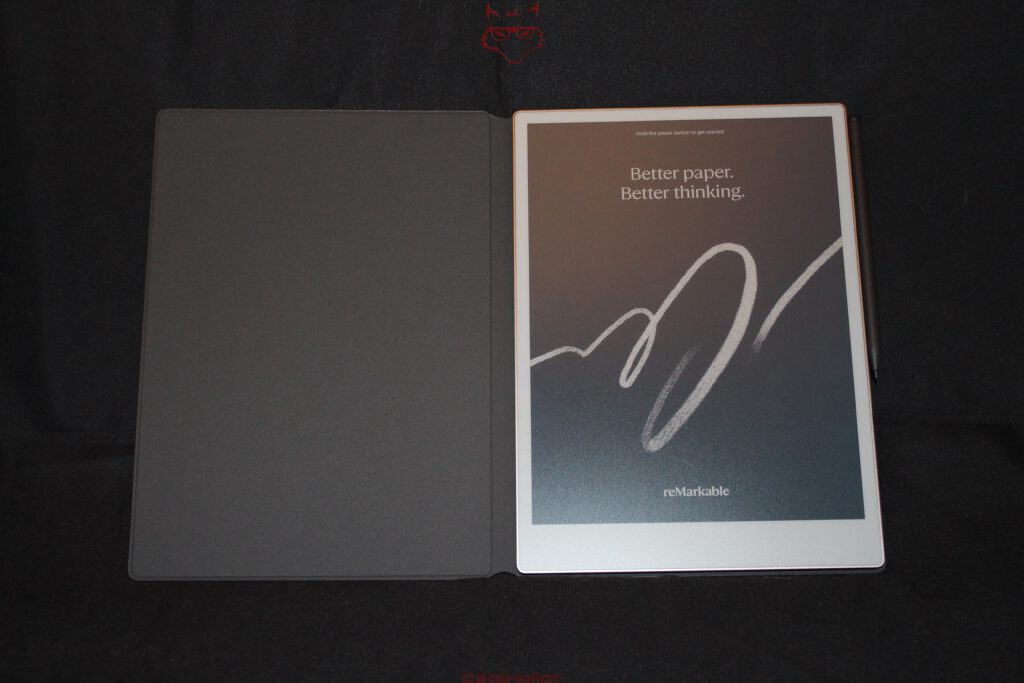
The Book Folio complements the Paper Pro exceptionally well. Installation is magnetic. The tablet is placed inside, aligns almost automatically, and then sits securely in the cover. Clips, plastic lugs, or awkward holders are absent. This approach not only looks more elegant, but also reduces the risk of scratching the frame or housing during installation.
The magnet holds the Paper Pro reliably. The device remains in position when the cover is opened and does not detach unintentionally during transport. At the same time, it can be removed without force. This balance is not achieved by every magnetic case. Weak systems create uncertainty, while overly strong versions turn removal into a strength exercise.
The cover protects the front and rear surfaces from scratches and minor mechanical stress. In a backpack, it prevents keys, cable connectors, or other hard objects from coming into direct contact with the display. The slim Folio does not provide substantial drop protection. Its main purpose is to preserve the surfaces and keep the tablet together during everyday use.
The integrated flap secures the Marker. In the closed position, it rests over the pen and prevents it from being brushed away from the side. When opened, the flap largely disappears from the working area. The detail may seem trivial, but it solves one of the most common problems with pen-based tablets: a magnetically attached stylus works well on a desk, but can easily be knocked off inside a full bag.
Around 240 grams more, but considerably greater stability
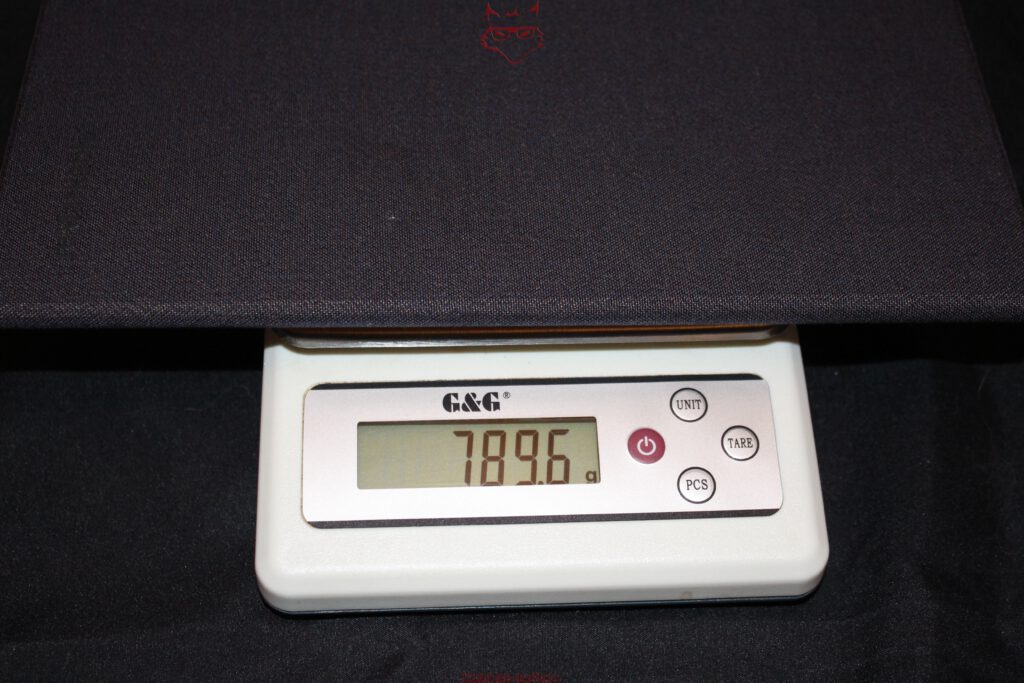
Depending on the material version, the Book Folio increases the weight by approximately 234 to 246 grams. With the tested version, the additional weight is therefore around 240 grams. Combined with the 525-gram Paper Pro, the complete package approaches roughly 760 grams.
The difference is noticeable. Without the cover, the Paper Pro feels exceptionally thin and light. With the Book Folio, it becomes a more substantial working device. For short journeys within a building, this makes little difference. In an already heavy bag, every gram adds up. Even so, the total weight remains well below that of many laptops and is distributed comfortably across the flat form.
On a table, the additional weight even becomes an advantage. The combination rests very securely, barely moves while writing, and provides a firmer base. Rapid notes benefit in particular. The bare tablet is not unstable, but the Folio increases friction and dampens small movements.
When closed, the package remains smaller and thinner than many conventional notebooks with a comparable writing area. A thick college pad may not require a battery, but it only includes a limited number of pages. The Paper Pro carries hundreds of documents, books, and notebooks in a single housing without becoming physically thicker with every new project. Any desk on which old notebooks have already formed a small geological layer will appreciate this characteristic.
Materials and signs of everyday use
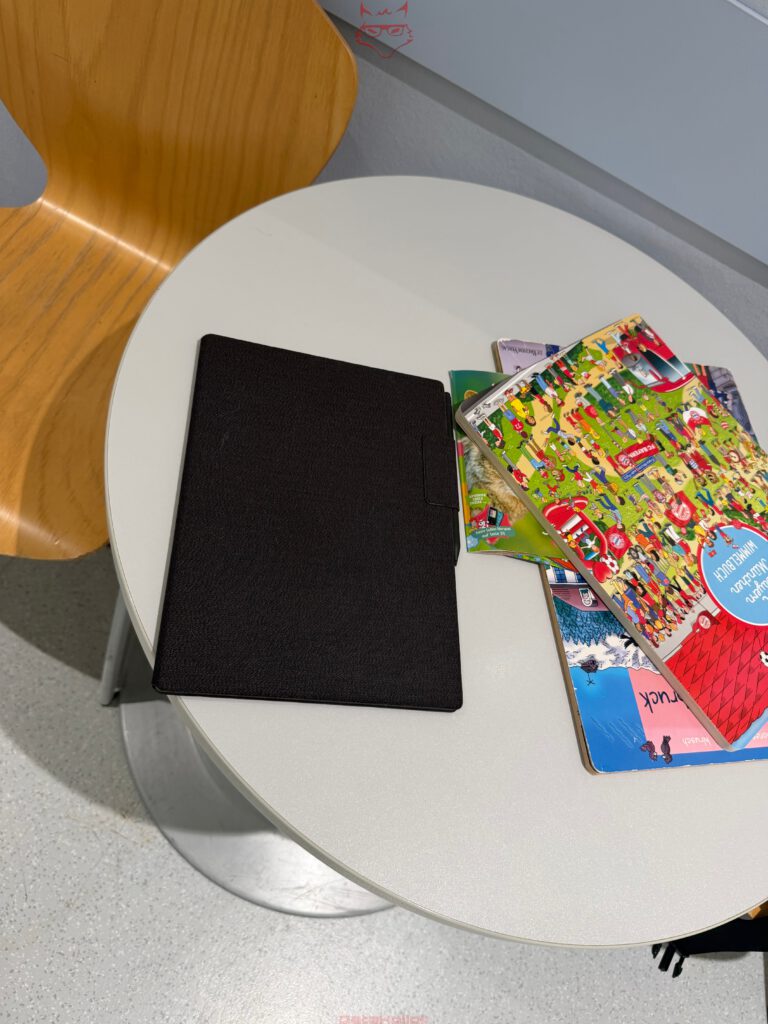
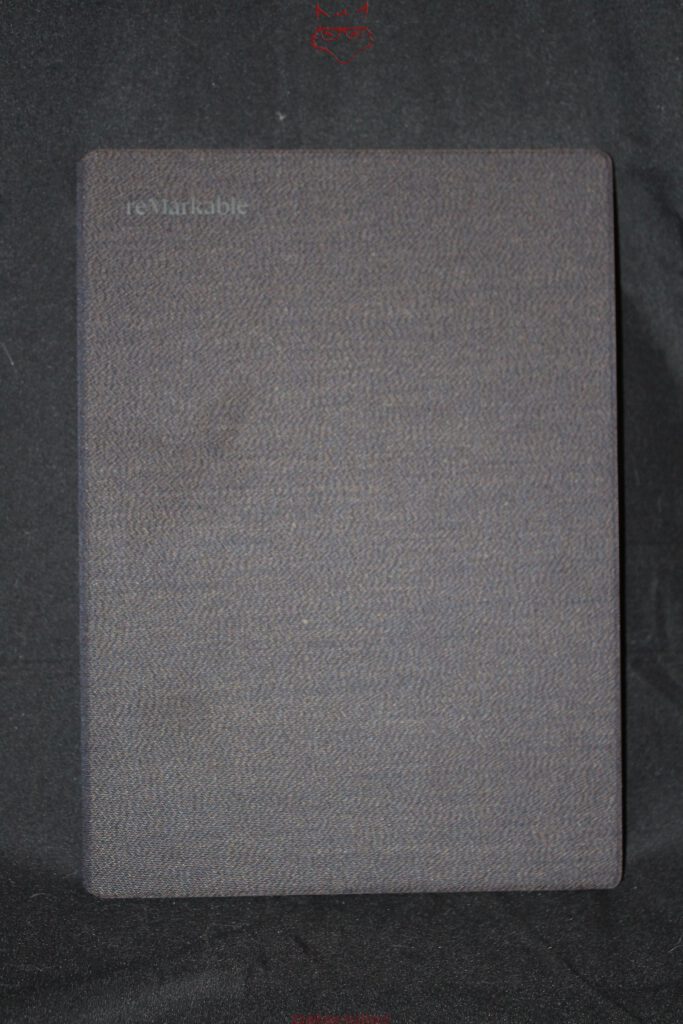
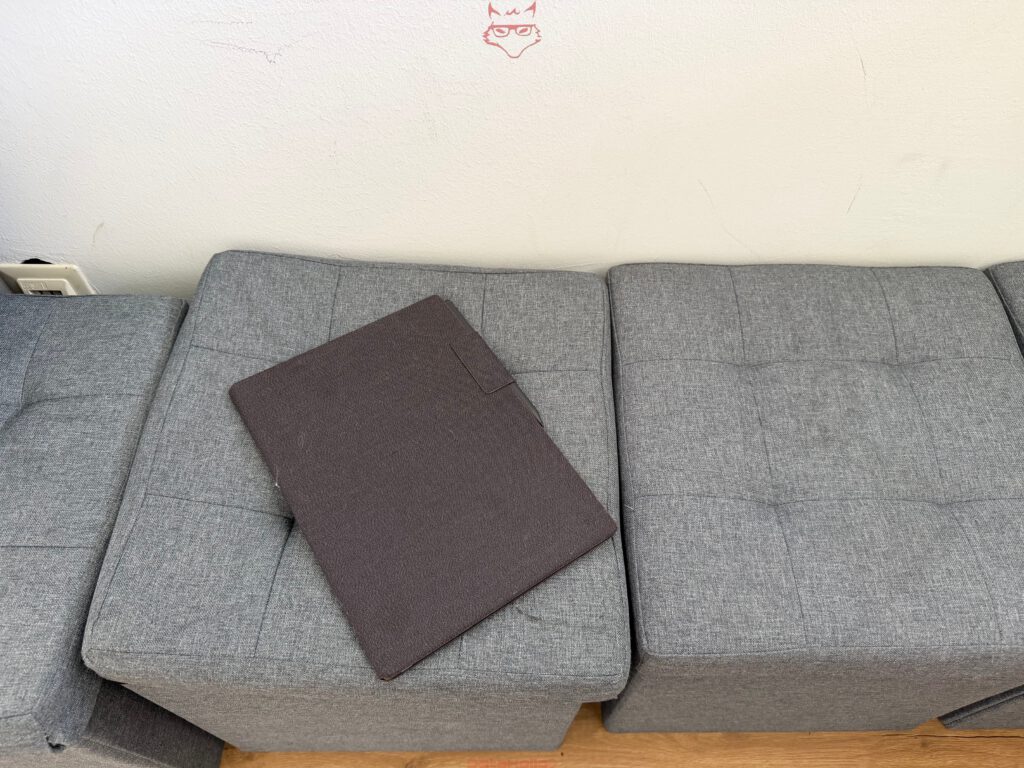
The textile surface of the Book Folio feels premium and suits the understated design of the tablet. It feels less technical than smooth plastic and improves grip. At the same time, fabric attracts dust, fibers, and individual hairs more readily. These everyday traces are already visible in the practical images. This is not a manufacturing defect, but a logical consequence of the material.
Brief cleaning with a soft brush or slightly damp cloth removes much of the dirt. Aggressive cleaning agents should be avoided. The cover ages visually more like a fabric-bound book than a smooth plastic shell. Over time, it develops visible signs of use without immediately appearing worn out.
The dark color proves easier to maintain than lighter alternatives. Dust remains visible, but stains are less noticeable. For a mobile working device, this pragmatic color choice makes sense. A cover that becomes nervous at the mere sight of a coffee cup is only partially suited to everyday life.
Editing documents directly instead of commenting separately
One of the Paper Pro’s most important capabilities is the option to place notes directly inside documents. PDF files are not merely displayed, but serve as active working surfaces. Text passages can be highlighted, handwritten additions can be inserted, and symbols can be drawn. These edits remain connected to the document and can later be exported again.
This removes a traditional boundary between media. With printed documents, additions land directly on the paper, but remain available only there. On a conventional computer, comments are often created in separate windows or special PDF tools. The Paper Pro combines the directness of handwriting with the portability of digital files.
This is particularly useful for corrections, approvals, and editorial work. A longer text can be read on the calm display while unclear wording, numerical errors, or structural problems are marked directly. Commenting feels more natural than with a mouse or trackpad. A circle around a problematic paragraph is created in a single movement, an arrow connects two thoughts, and a margin note requires no additional dialog box.
The annotations remain visible after export. A commented version can therefore be shared with other participants or archived on a computer. The workflow does not replace every professional PDF application, but it significantly accelerates the actual review process.
PDF and EPUB: Native, but not without limits
PDF and EPUB files can be imported directly and opened on the Paper Pro. PDFs retain their fixed page layout, while EPUB content can be adjusted more flexibly in terms of font size and display. DRM-protected e-books are not supported. Kindle books therefore cannot simply be transferred from an Amazon library.
Native support covers many freely available books, technical documents, academic texts, and self-created files. PDFs benefit especially from the large display. A4 pages remain usable despite scaling, while landscape mode provides additional width for complex layouts.
EPUB files are better suited to continuous books. Font, size, orientation, and margins can be adjusted. The reading experience remains deliberately simple. Animated page-turning effects and colorful storefronts are absent. Instead, the book opens and remains at the center of attention.
Integration with the Amazon Kindle ecosystem would be practical, but it is not an essential part of the concept. The greatest obstacle lies less in displaying the content than in DRM and closed platform structures. Official Kindle support could make the Paper Pro considerably more versatile as a reading device. At the same time, deeper store integration would introduce additional menus, accounts, and potential distractions into a system that has so far remained highly focused.
Comics on electronic paper
The color display expands the possible uses to include comics and graphically designed books. The large surface presents complete pages at a usable size, while speech bubbles and outlines remain easy to read. Colors appear more subdued than on glossy paper or an OLED tablet. Depending on the source material, this difference can feel appealing or limiting.
Classic comics with clear outlines and flat colors suit the display particularly well. Modern digital productions with strong gradients, very dark scenes, or bright effects lose some of their visual impact. The Paper Pro interprets such content more like a premium color print on matte paper.
For longer reading sessions, this calm presentation is precisely what makes it pleasant. There are no reflections from a glossy display, no aggressive brightness, and no notification appearing halfway through a page. The reading light also enables use under weak ambient lighting.
The device does not replace a specialized comic reader for every collection. Formats such as CBZ or CBR are not natively supported as a specific focus, so content may need to be converted into PDF format. When a comic is available as a suitable PDF, the presentation is convincing. The colors are less spectacular, but often more pleasant than expected.
Windows and macOS: Integration instead of awkward file acrobatics
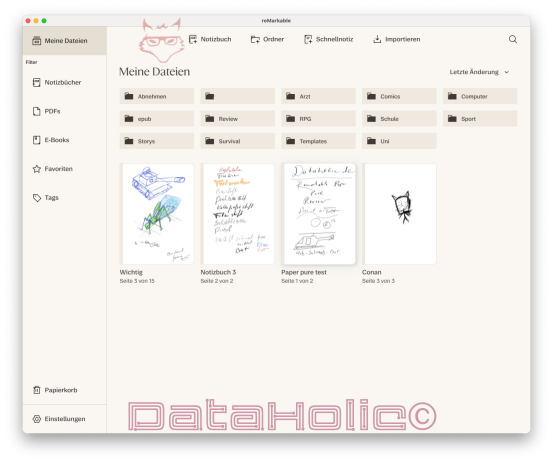
The desktop applications for Windows and macOS are among the strongest elements of the ecosystem. Files can be imported by drag and drop, folders are synchronized, and notebooks become available on the computer. This eliminates the traditional detour through memory cards, cables, or emails sent to oneself.
A smooth cycle develops in everyday use. A PDF is dragged into the reMarkable application on a Mac or Windows PC, appears shortly afterward on the Paper Pro, and can be edited there. The annotated version is then available on the computer again. The hardware remains specialized, while the desktop handles the management of larger quantities of files.
This division of labor is sensible. A large folder structure can be maintained more quickly with a mouse and keyboard than on an E-Paper display. Reading and annotating, by contrast, is more comfortable on the Paper Pro. Rather than turning every platform into a complete copy of the others, the system uses the strengths of each one.
Applications for mobile platforms are also part of the synchronization system. Files can be imported, viewed, and organized while travelling. reMarkable supports synchronization of notes and documents through applications for macOS, Windows, iOS, and Android.
The integration does not offer the openness of a conventional file server. The reMarkable ecosystem remains a controlled environment. Within this environment, however, file exchange works reliably and remains pleasantly unobtrusive. For a working tool, that matters more than a long list of theoretical interfaces.
Paper Pro and Paper Pure: Two devices, one shared body of work
The exchange of data between the Paper Pro and Paper Pure proved particularly convincing. Both devices access the same synchronized library through the reMarkable account. A notebook created on the Paper Pro appears on the Paper Pure, edited documents are updated, and folder structures remain consistent.
This does not create competition between the devices, but a division of tasks. The larger Paper Pro is suitable for color documents, lecture scripts, comics, and extensive notes. The more compact and lighter Paper Pure can be more practical in situations where portability matters more than maximum surface area. A project can begin on one device and continue on the other without requiring an export process to be planned in advance.
The transition feels particularly natural because the operating logic remains similar. Tools, folders, and gestures are familiar. Only display size, color, and lighting change the character. No renewed learning phase is required.
During a brief test, synchronization may seem like a minor convenience. After several weeks, it becomes the foundation of the entire system. Once a document is naturally available on both devices, manual file transfer suddenly feels about as modern as a floppy disk with a handwritten label.
Performance and rapid wake-up
E-Paper devices are often associated with sluggish operation. The Paper Pro cannot completely eliminate the physical characteristics of its display, but it feels considerably more responsive in everyday use than older generations of electronic note-taking devices. Menus open quickly, documents load within a reasonable time, and writing follows the Marker without a distracting delay.
Rapid wake-up from standby is particularly important. When the Book Folio is opened or the power button pressed, the device becomes available quickly. The delay is short enough to capture spontaneous thoughts. A digital notebook loses its purpose if a boot process, login procedure, and several system notifications must be handled first.
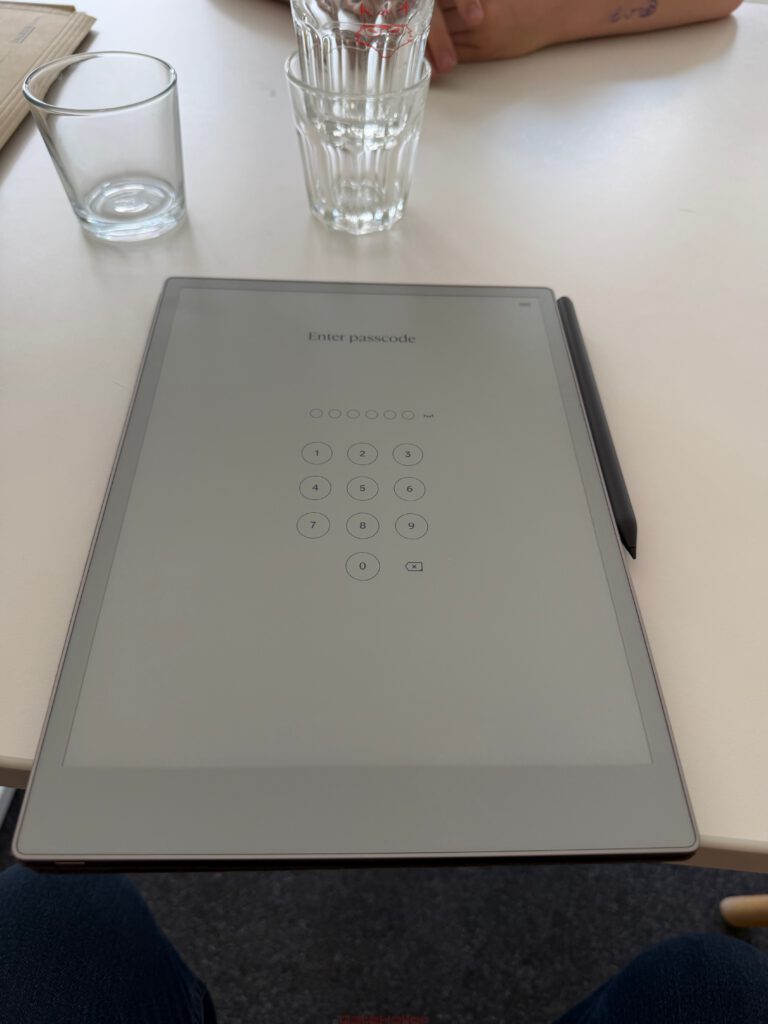
An optional passcode protects personal content. Entry takes place through a simple numerical interface. A fingerprint sensor would be more convenient, but would also require additional hardware and complexity. The passcode serves its purpose, especially for sensitive meeting notes.
Software updates have repeatedly improved general responsiveness. reMarkable regularly releases new versions containing functional changes, optimizations, and interface adjustments. Later versions have also introduced general performance improvements intended to make operation faster and more responsive.
Regular updates as part of the product
The Paper Pro is not a static device. Since its introduction, reMarkable has continuously expanded the software. New preview options, lighting adjustments, performance improvements, and changes to tools demonstrate that the platform is actively maintained.
This development is more important than the longest possible feature list at launch. A specialized device benefits from improvements to existing workflows. Small changes can have a greater impact than spectacular new functions. Faster tool switching, improved page display, or a better sleep mode are used every day. An exotic additional application may impress for five minutes and then disappear inside a submenu.
Updates must not gradually overload the clear interface. So far, the underlying character has remained intact. New possibilities are generally integrated into existing workflows rather than creating further layers of menus.
Long-term maintenance builds confidence. A premium writing device is not purchased for only a few months. It should function for several years and adapt to changing workflows. Bug fixes, security updates, and synchronization improvements are just as important as new convenience features.
Battery life: Weeks rather than daily charging
reMarkable states a battery life of up to 14 days with regular use and up to 90 days in standby. Naturally, these figures depend on lighting, Wi-Fi use, synchronization, and writing duration.
In practice, the most important advantage is less about reaching an exact number and more about the altered charging routine. The Paper Pro does not demand a power supply every evening. Several appointments and longer writing sessions can be completed without constantly monitoring the battery level. The lighting increases consumption, particularly at higher intensity. Without it, battery life improves accordingly.
Charging takes place via USB-C. The device therefore fits into a modern cable environment and does not require a proprietary power supply. An existing charger for a notebook or smartphone is sufficient, provided it supports the required standards.
Electronic paper primarily consumes energy when the displayed content changes. A static page remains visible without being continuously redrawn. This characteristic explains both the long battery life and the typical sleep screen, where an illustration remains visible. Even while sleeping, the device looks less switched off than paused.
No IP rating: A valid point of criticism
There is no official IPX or IP certification. For a device used in cafés, lecture halls, offices, and public transport, at least tested protection against splashes would be useful. Rain, spilled drinks, and damp bags are realistic risks for mobile electronics.
This criticism still requires context. Many conventional tablets, including standard iPad models, also lack an officially stated IP rating. The Paper Pro is therefore not alone in this respect. Its resemblance to books and notebooks may, however, encourage a more careless approach. Despite its analogue character, an electronic paper display remains sensitive technology.
The Book Folio protects against scratches, but it does not replace a sealed case. Liquids can still reach the edges and ports. In a café, a minimum distance between the glass of water and the device is therefore advisable. This rule sounds obvious until a glass chooses the exact direction in which all the electronics are located.
A future generation with certified splash resistance would significantly strengthen the mobile character. Until then, careful handling remains necessary.
Amazon Kindle: Practical, but not essential
Direct Kindle integration is one of the most obvious potential additions. Many digital libraries already exist within Amazon’s ecosystem, and access to purchased books would broaden the Paper Pro’s range of uses.
Its absence is not simply the result of a missing app. Kindle content is frequently DRM-protected and tied to Amazon’s platform. reMarkable supports DRM-free EPUB files, but it cannot natively open protected Kindle books.
An official partnership could overcome this limitation. It would make the Paper Pro a more attractive reading device, especially for extensive existing libraries. At the same time, such integration would need to remain discreet enough that advertising, store recommendations, and account menus did not dilute the reduced character.
The current situation should therefore be regarded neutrally. Kindle support would be welcome, but its absence does not damage the core functionality. The Paper Pro is primarily a writing, document, and thinking tool. Books form part of that concept, but they are not its only purpose.
What the Paper Pro does not attempt to replace
The Paper Pro does not replace a complete computer. Complex spreadsheets, elaborate layout work, video conferencing, or software development remain tasks for notebooks and desktop systems. It is also unsuitable as a universal entertainment tablet.
These limitations should be understood before purchase. Anyone searching for a device for streaming, social networks, and conventional apps will find more powerful alternatives for less money. Anyone who mainly writes, reads, annotates, and organizes is not paying for missing functions with the Paper Pro, but for the deliberate absence of distracting ones.
The device does not replace every form of paper either. A quick note on the refrigerator, a signed card, or a sketch passed across a table may still be easier in analogue form. The Paper Pro becomes most valuable when many pages, recurring projects, and digital processing come together.
The greatest mistake would be to treat the device as a smaller laptop. Its strengths only become fully apparent when it is used as an endless and well-organized notebook.
The price of concentration
The Paper Pro, including Marker Plus and Book Folio, is not an inexpensive writing device. A notebook and a good pen cost only a fraction of the price. Even so, that comparison remains incomplete. The system combines numerous notebooks, a document reader, an annotation platform, cloud synchronization, and several digital writing tools.
The price must therefore be weighed against actual use. For occasional shopping lists, the device would be excessive. With daily meetings, lectures, text corrections, and large document collections, the investment is distributed across many working hours.
The premium construction also contributes to the cost. The metal housing, large color display, precise Marker, and magnetic accessories do not feel like short-lived consumer electronics. Nevertheless, the financial outlay remains significant, especially with the Book Folio or Type Folio.
The Paper Pro does not sell maximum computing power per euro. It sells a clearly defined working space. Whether that space justifies the price depends more strongly on the individual workflow than on technical comparison charts.
Verdict: The strongest argument is that it is packed voluntarily
After numerous meetings, lectures, café appointments, and extended writing sessions, one observation stands above all others: the Paper Pro was not packed out of obligation. It came along because its absence would have been noticed. That is the strongest sign of quality in a working tool.
The large Canvas Color display offers enough room for documents, sketches, and extensive notes. Colors improve structure without turning the restrained presentation into a bright tablet experience. The integrated lighting enables work under weak illumination while remaining pleasantly subtle. The Marker Plus belongs to the most convincing digital pens in its class and combines precise input with natural resistance.
The interaction between the individual components is particularly strong. Windows and macOS applications simplify file exchange, synchronization between the Paper Pro and Paper Pure works quickly, and PDF and EPUB files can be used without unnecessary detours. Notes are placed directly inside documents rather than existing separately beside them. Regular updates improve the platform without fundamentally changing its reduced character.
The Book Folio complements the system in a meaningful way. The magnet holds securely, the tablet can be inserted without awkward mounting mechanisms, and the surfaces are protected against scratches. The additional Marker flap prevents the pen from being lost during transport. The increase of around 240 grams is noticeable, but also improves stability on a table. The closed package remains thinner than many conventional notebooks while still carrying an entire digital library.
The missing IP certification deserves criticism. Officially tested splash protection would suit a mobile working device in this price class. Kindle integration would also be practical, although the closed nature of protected content and Amazon’s ecosystem makes it more of a desirable addition than an essential requirement.
The greatest advantage cannot be expressed in pixels or grams. The Paper Pro creates a digital space in which writing once again becomes the main task. It combines the organization and availability of digital documents with the calm of a notebook. No notification interrupts, no browser waits in the background, and no app icon demands attention.
This makes the device highly suitable for digital detox without abandoning digital workflows. It does not enforce less technology, but more deliberate technology. That distinction is crucial. A conventional tablet attempts to perform as many tasks as possible at the same time. The Paper Pro concentrates on a smaller number of tasks and executes them with unusual consistency.
What remains is a tool that neither needs to imitate paper nor replace a computer. It occupies the space between both worlds and uses their strongest qualities. Paper provides calm, immediacy, and a familiar writing experience. Digital technology adds synchronization, colors, organization, and virtually unlimited pages. The result is not a spectacular entertainment device, but something considerably rarer: an electronic product that does not consume attention, but protects it.

Transparency notice in accordance with EU requirements:
The reMarkable Paper Pro, including the Marker Plus and Book Folio, featured in this review was provided to us by reMarkable as a non-binding review loan for testing purposes. This is not paid advertising.
reMarkable had no influence on the content, assessment, or editorial independence of this article. All opinions expressed are based exclusively on our own practical experience.
We would like to thank reMarkable for providing the Paper Pro and its accessories and for the trust placed in dataholic.de.