
Basics 3: Dygma Bazecor – Understanding, Configuring, and Using Superkeys and Layer Lens Effectively
- Layer Lens – When the Keyboard Explains Its Own Layout
- From a simple key assignment to a Superkey
- Superkeys, layers, and macros: three tools with different purposes
- Where to find the Superkeys Editor
- Creating a new Superkey
- Tap: the short keypress
- Hold: holding instead of tapping
- Double Tap: pressing twice briefly
- Tap and Hold: tapping once and holding on the second press
- Double Tap and Hold: pressing twice and holding the second press
- Assigning the Superkey to a key
- A sensible starting point: Escape and Ctrl
- Space bar and layer: useful, but not identical in every situation
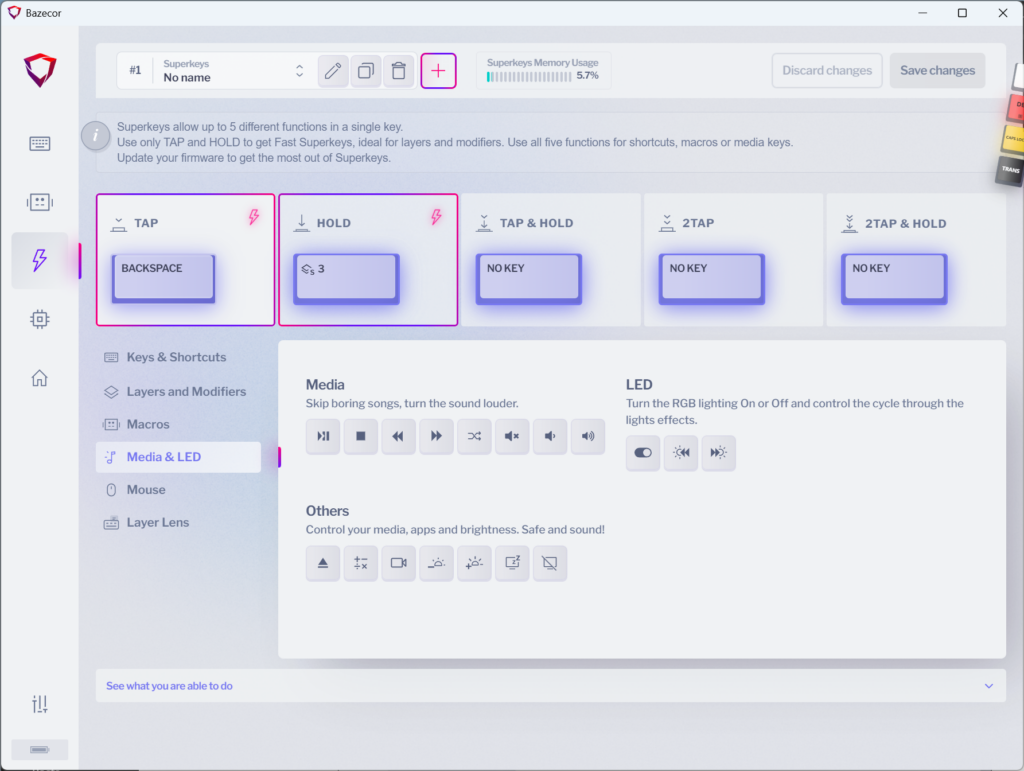
- Backspace and Delete on one key
- Combining Superkeys with macros
- Limitations of Superkeys
- Typical configuration mistakes
- Expanding Superkeys step by step
- Preparing for further work with Bazecor
- Note in accordance with EU transparency requirements:
Anyone using Dygma keyboards such as the Raise, Raise 2, and Defy will sooner or later come across a feature whose name initially sounds like it belongs to a cape, a secret identity, and a slightly questionable number of sequels: Superkeys. However, there is neither a particularly heroic keycap behind the term nor an RGB effect that makes the desk glow red in an emergency. Superkeys add several functions to individual keys and are therefore among the most interesting tools within Dygma’s Bazecor configuration software.
This guide builds on the previously published Bazecor basics and the subsequent customization of the key mapping. The first part focused on installation, device detection, the interface, firmware, and the basic operation of the software. This was followed by the actual work in the Layout Editor: keys were assigned new functions, layers were made accessible, and the factory layout was gradually transformed into a personal configuration.
Superkeys pick up exactly where that process leaves off. A programmable key is no longer assigned just one different function. Instead, it reacts to how it is pressed. A short tap can send Escape, holding the key can activate Ctrl, a double tap can toggle Caps Lock, and another input sequence can open a layer. A single key therefore becomes a compact package of functions, without drilling additional switches into the case or ordering three extra fingers.
Once again, this is not a review, an evaluation, or an attempt to create the most spectacular example possible with 17 functions assigned to the space bar. This guide explains the structure of Superkeys, the available input types, their configuration in the editor, their interaction with layers and macros, and the most important limitations. The last point deserves particular attention, because a Superkey is not a replacement for every ordinary key. Used correctly, it shortens movement paths. Configured poorly, it can instead cause the letter E to stop and consider whether it truly wants to be an E.
Layer Lens – When the Keyboard Explains Its Own Layout
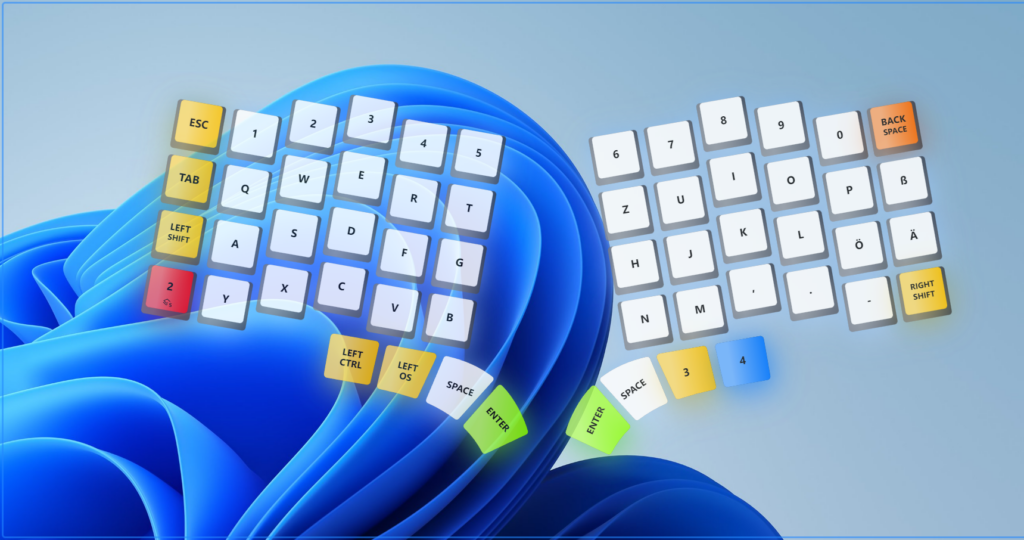
With Bazecor 1.11 and the accompanying firmware updates for the Dygma Raise 2 and Defy, a new feature arrives that addresses an everyday challenge, particularly for users with extensive key configurations: Layer Lens. First introduced for the Sonsei with Bazecor 1.10, this visual assistance feature is now available for Dygma’s other two keyboard models as well. The idea behind it is as simple as it is practical. Instead of having to memorize every key assignment across multiple layers, the currently active layer appears as a graphical representation directly on the screen.
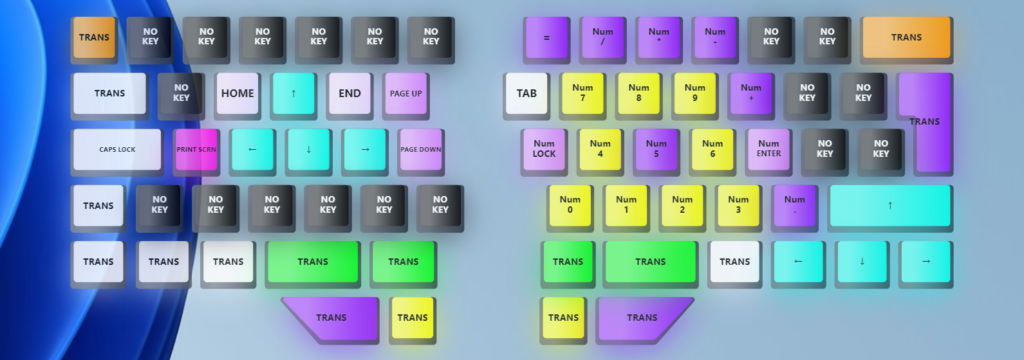
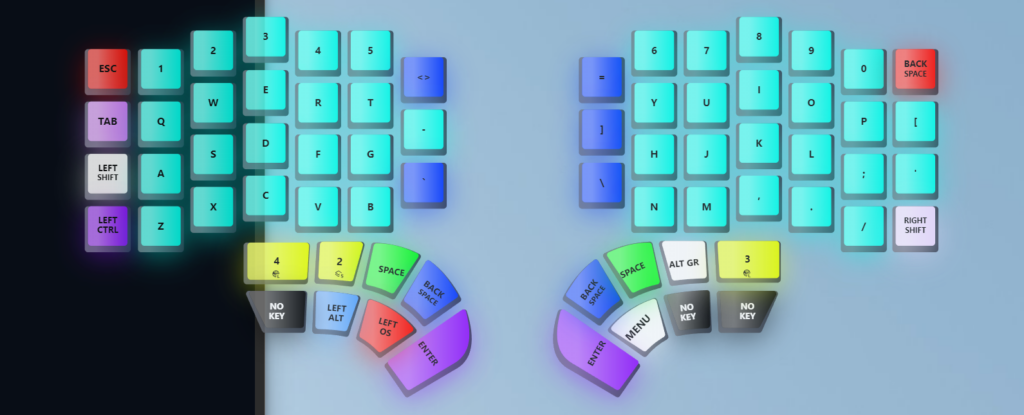
Anyone who has already configured several layers will be familiar with the problem. The first layer contains the usual letters, the second provides navigation controls and a number pad, while additional layers accommodate shortcuts, special characters, or application-specific functions. As long as muscle memory takes care of everything, this arrangement works beautifully. However, when a rarely used function is needed, the search occasionally begins for a key whose position once seemed perfectly logical. Layer Lens makes that search considerably easier by displaying the current layout as an on-screen overlay. When switching between layers, the display changes accordingly, including the different key assignments and their individual color schemes.
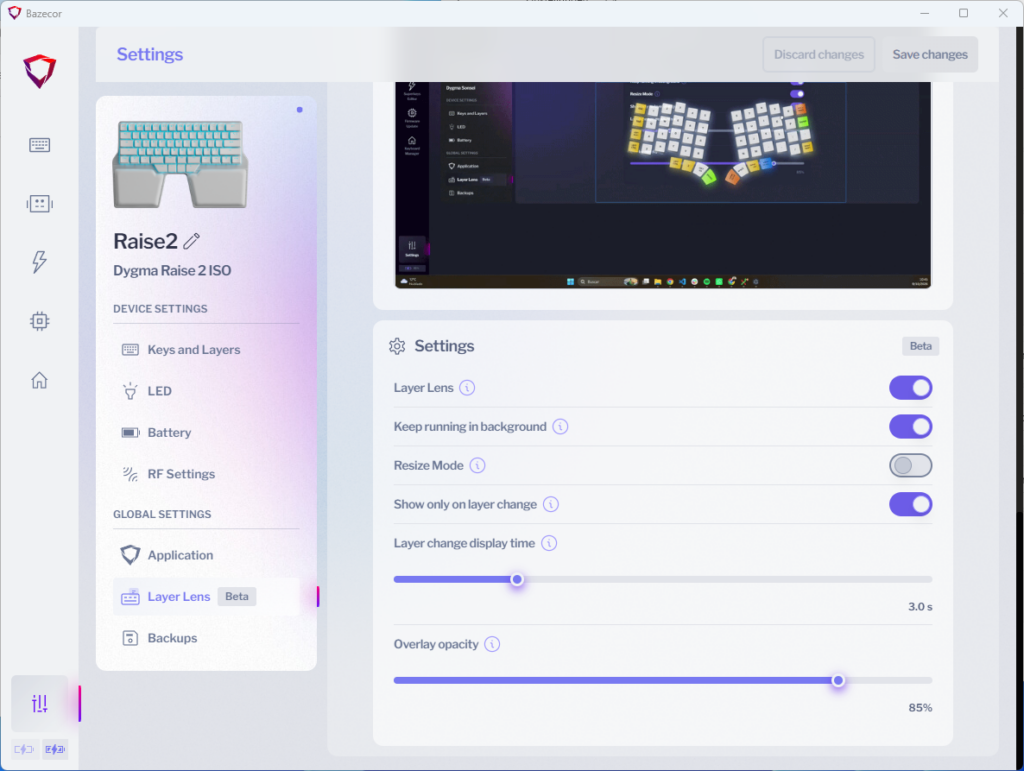
Configuration takes place under Settings > Layer Lens. The feature can be enabled there and subsequently adjusted to individual preferences. The Overlay opacity setting determines the transparency of the on-screen representation. Higher opacity makes individual key labels easier to recognize but obscures more of the underlying screen content. Lower opacity integrates the keyboard visualization more discreetly into the workspace. Resize Mode allows the overlay to be moved and resized. This is particularly useful with multiple monitors or extensive desktop environments, as the representation does not have to remain permanently in an inconvenient position.
The Show only on layer change option is particularly interesting. When enabled, Layer Lens does not remain permanently visible but appears only when switching to another layer. The duration of the display is controlled through Layer change display time. In the configuration screenshot shown, this interval is set to three seconds. Switching to the desired layer is therefore enough to briefly display its assignments. The overlay then disappears automatically without permanently covering the workspace. Users who are still learning a completely new layout can alternatively keep the visualization visible for longer.
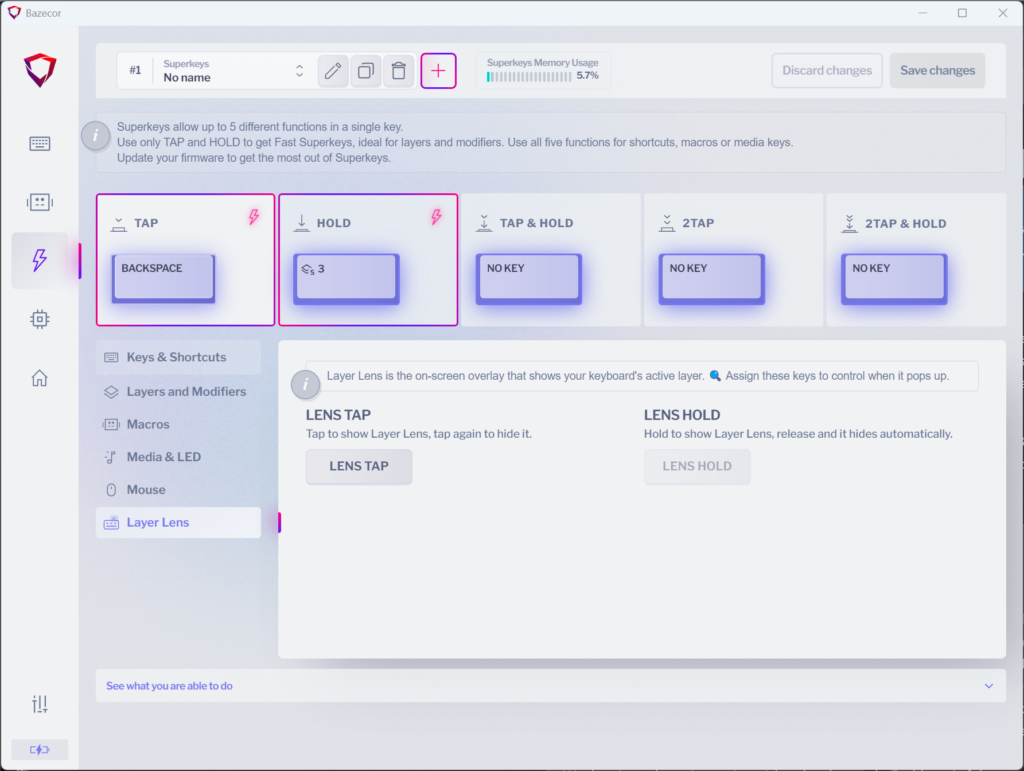
Special Layer Lens functions are also available directly in the Layout Editor. Lens TAP toggles the overlay on or off with a keypress, while Lens HOLD displays it only for as long as the assigned key is held. A combined Superkey assignment can bring both behaviors together on a single physical key. This makes Layer Lens a particularly fitting addition to the subject of this third basics guide: a single key can perform different tasks depending on how it is pressed. Rather than reserving additional keys for controlling the overlay, the feature can be integrated into an existing Superkey configuration.
For the on-screen representation to respond to keyboard input, Bazecor requires the operating system’s corresponding keyboard monitoring permission. According to Dygma, this permission is used exclusively to detect Layer Lens controls; other keystrokes are neither recorded nor stored through this mechanism. Bazecor must also be running on the computer. The Keep running in background setting ensures that the application continues operating after the main window is closed, keeping Layer Lens available. The corresponding functions can also be accessed through the application’s system tray icon. After completing the configuration and saving the changes, Dygma recommends restarting both Bazecor and the keyboard.
One important distinction from ordinary layer functionality should not be overlooked. The actual key assignments remain stored in the keyboard’s Neuron and continue working independently of whether Bazecor is open. Layer Lens, on the other hand, is an additional software feature that generates its visual representation on the computer. Without Bazecor running, only the visual assistance disappears, not the previously configured key assignments.
At the time of its introduction, Layer Lens still carries the Beta label. Dygma continues to work on bug fixes and broader support for different keyboard languages. Particularly with special characters and international layouts, the displayed labels should therefore be compared with the characters actually produced. The new feature is already usable, although its representation is not yet fully refined in every configuration.
The Dygma Defy, with its unconventional key arrangement and numerous thumb keys, stands to benefit particularly from this functionality. The layouts shown illustrate just how different two layers of the same keyboard can be. While the base layer contains a largely familiar typing arrangement, another layer transforms the keyboard into a combination of number pad, navigation controls, and special functions. Layer Lens makes these differences immediately visible without requiring users to open the Layout Editor simply to check a key assignment.
The feature does not replace a thoughtfully designed layout or the time needed to become familiar with it. However, it makes the learning process considerably more comfortable. Particularly with rarely used layers, newly configured Superkeys, and more complex workflows, the previous guesswork about the location of individual functions becomes unnecessary. In a sense, the keyboard gains a digital set of labels that changes together with its assignments. And anyone who has ever desperately searched for a key they programmed themselves will probably appreciate this small helping hand for their memory.
From a simple key assignment to a Superkey
A conventionally assigned key follows a remarkably straightforward concept. It is pressed, the keyboard sends the stored keycode, and the operating system processes the input. Whether Windows, macOS, or Linux interprets this as a letter, a shortcut, or a system function depends on the selected layout and assigned command.
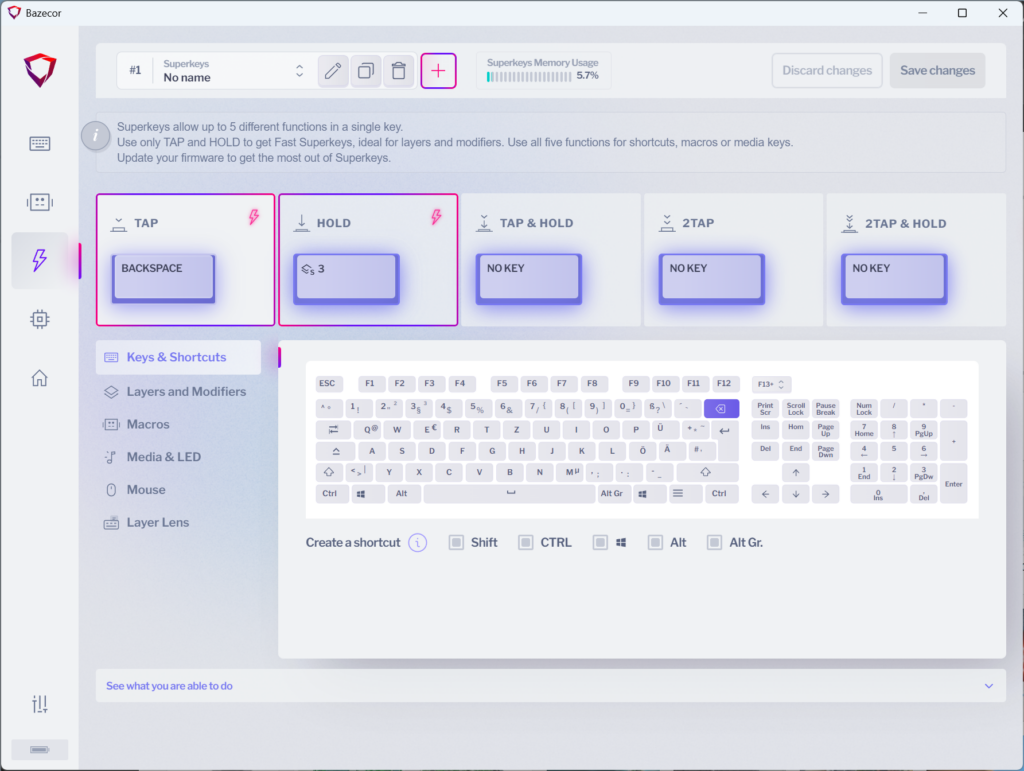
Superkeys add another decision layer between the keypress and the resulting output. The firmware does not merely check which key was pressed, but also the sequence and duration of the input. Bazecor provides five different triggers for this purpose:
- Tap
- Hold
- Double Tap
- Tap and Hold
- Double Tap and Hold
Not every Superkey has to use all five options. Dygma explicitly points out that only the actions that are actually needed have to be assigned. Each of these actions can contain a character, a shortcut, a layer function, or even a macro. The possibilities therefore range from a simple dual-function key to a far more extensive multi-function assignment.
From a technical perspective, the main difference compared with a normal key lies in the required timing window. The keyboard has to wait briefly to determine whether a second keypress will follow or whether the key will remain held down. Only then is it clear which action was intended. This is exactly why Superkeys can respond slightly more slowly than ordinary keys. Dygma specifically mentions this point in its own documentation and recommends using only Tap and Hold at first if difficulties occur, particularly with letters, layers, or modifiers.
This is not a malfunction, but a direct consequence of the concept. A key with only one task has nothing to interpret. A Superkey, on the other hand, pauses at the junction for a moment and checks whether it should turn left, right, or continue straight ahead.
Superkeys, layers, and macros: three tools with different purposes
Superkeys are often confused with layers or macros. All three functions expand the capabilities of a programmable keyboard, but they operate in different ways.
A layer provides an entire additional assignment level. On the base layer, a key may type the letter H. On a navigation layer, the same physical position may instead trigger the left arrow key. A layer therefore does not merely change one key, but potentially the entire keyboard.
A macro executes a previously defined sequence of inputs. This may be a shortcut, several keyboard combinations sent one after another, or a recurring workflow. Once triggered, the macro processes its stored sequence step by step.
A Superkey, by contrast, uses the type of keypress to decide which individual function, shortcut, layer command, or macro should be triggered. It is therefore not a competitor to layers or macros, but rather a type of distributor. The way the key is pressed determines which path is taken.
A practical example illustrates the difference:
- A short tap sends Escape.
- Holding the key activates Ctrl.
- A double tap toggles Caps Lock.
- Tapping and then holding temporarily activates a layer.
- Double tapping and then holding starts a previously created macro.
The Superkey does not automatically execute all of these actions one after another. It selects exactly one based on the detected input pattern. This separation is what keeps the system manageable in everyday use.
Where to find the Superkeys Editor
Bazecor includes a dedicated section for Superkeys. After launching the software and connecting the keyboard, the Superkeys Editor can be found in the navigation area on the left-hand side. Existing Superkeys are managed there, and new entries can be created.
A Superkey is initially created independently of the actual keyboard layout. This point is important, because creating one does not immediately change a key. The editor effectively creates a reusable function template. Only afterwards is this template assigned to a specific key in the Layout Editor.
Dygma’s official workflow therefore consists of two separate steps:
- Create and configure the Superkey in the Superkeys Editor.
- Assign the Superkey to a key in the Layout Editor.
At first, this separation may seem slightly more cumbersome than configuring everything directly on the key. However, it allows the same Superkey to be reused in different positions or on different layers without having to recreate the complete input pattern every time.
Creating a new Superkey
A button with a plus symbol can be found in the upper section of the Superkeys Editor. This is used to create a new Superkey. Bazecor first asks for a name.
A clear name prevents unnecessary detective work later. Labels such as “Escape – Ctrl,” “Space – Layer 2,” or “Backspace – Delete” still explain the purpose of the entry weeks later. Names such as “Test 4 new final really final,” on the other hand, offer approximately the same long-term value as an unlabelled set of keys.
After naming the Superkey, the five possible input types appear. Only the functions that are actually needed should be assigned. For the initial setup, a combination of Tap and Hold is usually sufficient. Further variants can be added later, once the timing behaviour reliably matches the user’s typing style.
The configuration initially remains inside the editor. The Superkey is then saved and assigned to the desired key in the Layout Editor. The new assignment only becomes active after the changes have been saved to the keyboard.
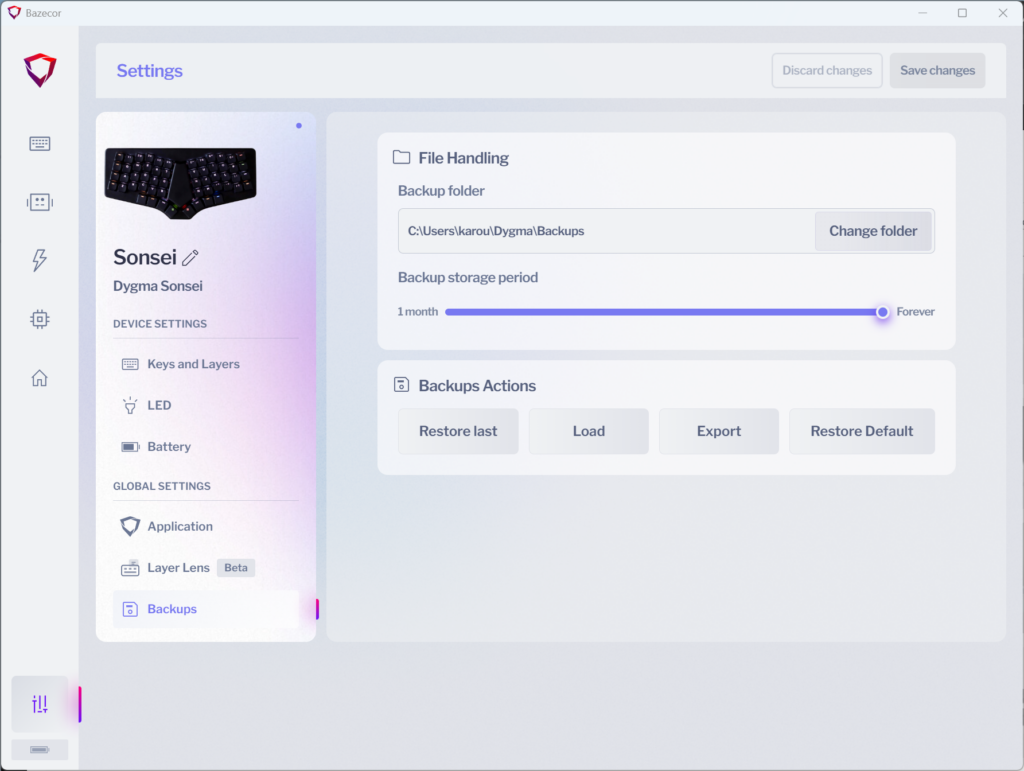
Bazecor automatically creates backups whenever saved changes are made. These backups include layers, macros, and Superkeys. In addition, a complete configuration can be exported or restored under Preferences > Backups. This makes it possible to preserve a working setup before more extensive experiments begin.
Tap: the short keypress
Tap refers to briefly pressing and releasing a key. This action most closely resembles the behaviour of a conventional keyboard key.
If Tap is assigned to Escape, a short keypress sends Escape. If the space bar is assigned, a space is created. Letters, symbols, shortcuts, and other supported functions can also be used as Tap actions.
On a Superkey with several functions, Tap usually represents the key’s primary task. A space bar should still create a space when pressed normally, while the additional function is only activated when the key is held or tapped twice. This preserves conventional operation without sacrificing the extended functionality.
With frequently used letters or symbols, Tap should be combined cautiously with additional input patterns. Since the firmware has to determine whether another keypress may follow, the output can be delayed compared with a normal key. Dygma therefore explicitly advises against assigning Superkeys indiscriminately across the entire keyboard.
Hold: holding instead of tapping
Hold is activated when the key remains pressed for longer. This option is particularly suitable for modifiers such as Ctrl, Shift, Alt, or the Windows or Command key.
One well-known use case is the creation of so-called home-row modifiers. In this setup, letters on the home row remain unchanged when tapped briefly, while holding the same keys activates a modifier. Dygma describes this configuration as a way of moving frequently used modifier keys closer to the natural typing position and reducing unnecessary finger stretching.
A simple example looks like this:
- Tap: A
- Hold: left Ctrl
During normal typing, the key still produces the letter A. If it remains pressed, it acts as the Ctrl key and can be combined with another key to create a shortcut.
This setup requires suitable timing values. A Hold threshold that is too short can accidentally turn deliberately prolonged letter presses into modifier actions. A threshold that is too long makes shortcuts feel sluggish. Bazecor provides settings in Preferences that allow the recognition behaviour to be adapted to the user’s typing speed. Dygma also recommends starting with Tap and Hold when using Superkeys with letters, layers, or modifiers.
Double Tap: pressing twice briefly
With Double Tap, the same key is pressed twice in quick succession. This action is suitable for functions that need to remain accessible without interfering with every normal keypress.
A typical example would be:
- Tap: Escape
- Hold: Ctrl
- Double Tap: Caps Lock
Caps Lock therefore remains available without occupying its own permanently assigned key. Accidental activation is also less likely, since two deliberate keypresses are required.
Layer functions, shortcuts, or macros can also be assigned to Double Tap, provided the chosen function is supported in that Superkey slot. The assignment should still remain logical. A frequently used action is usually not ideal for Double Tap, because two keypresses always require more time than one.
For recognition, Bazecor has to wait briefly after the first keypress to determine whether a second one follows. The timing window used for this can be adjusted through the Superkey or typing settings. A window that is too generous increases the delay, while a window that is too short may fail to recognise slower double taps reliably. The appropriate setting therefore depends more heavily on personal typing behaviour than on a universally ideal number. Dygma’s documentation explicitly refers to adjustable timeouts in Preferences.
Tap and Hold: tapping once and holding on the second press
Tap and Hold consists of two steps. The key is first pressed briefly and released. On the immediately following second press, the key remains held.
This input is clearly different from a simple Hold. With Hold, the first keypress itself remains active. With Tap and Hold, the first action is a complete tap, followed by another press that is then held.
This pattern is suitable for functions that should not be triggered accidentally but still need to remain available without a long detour. One example could be a layer that is only required during a particular type of work. The action requires a more deliberate input and is therefore less prone to accidental activation.
However, each additional input type also increases the cognitive load. A Superkey with Tap, Hold, Double Tap, and Tap and Hold already has four possible outcomes. This works technically, but it also has to remain understandable after a long working day. An assignment that can only be decoded using a chart placed next to the keyboard may be impressively complex, but it is not automatically practical.
Double Tap and Hold: pressing twice and holding the second press
Double Tap and Hold is the most extensive of the five available input types. The key is pressed briefly and released, then pressed again and held the second time.
This variant is suitable for rarely used or deliberately protected functions. A macro, a special layer, or an unusual key combination can remain accessible without interfering with normal input.
Particular care should be taken when configuring this option. The sequence takes more time than Tap, Hold, or Double Tap. It would therefore be unnecessarily cumbersome for frequently used shortcuts. For rare actions, however, it can be useful, particularly where accidental activation should be avoided.
The existence of five input patterns does not mean that every Superkey needs five tasks. Dygma explicitly states that individual fields can remain empty. In many layouts, a carefully tuned combination of Tap and Hold provides more practical value than a fully populated Superkey that feels like entering a small password.
Assigning the Superkey to a key
After creating the Superkey, the next step takes place in the Layout Editor. The desired layer is selected first, followed by the physical key that should receive the new Superkey.
The function area contains the Superkeys submenu. The previously created Superkey is selected from the list and assigned to the key. Only then is the connection between the function template and the physical key established.
Before saving, it is worth checking the selected layer. Accidentally assigning the function on the wrong layer is one of the classic mistakes made with programmable keyboards. The function has been created correctly, the appropriate key appears to be selected, and yet nothing happens. In many cases, the Superkey is sitting peacefully on Layer 3, waiting for a visit that never comes.
After checking the configuration, the changes are transferred to the keyboard using the corresponding button. The functional setup then remains stored in the device. According to Dygma, the names of layers, macros, and Superkeys are not stored directly in the keyboard’s memory, preserving space for other functions. Bazecor stores these names in its backups instead. When switching between computers, the backups should therefore be transferred or synchronised through a chosen storage location if identical names are required on every system.
A sensible starting point: Escape and Ctrl
A simple combination is well suited to the first custom Superkey:
- Tap: Escape
- Hold: left Ctrl
This configuration has only two states and is therefore easy to learn. A short press sends Escape. If the key remains held, Ctrl combinations can be executed.
After saving, the function should first be tested in a non-critical application. A text editor is sufficient. A short press must trigger Escape, while holding the key together with C or V should produce Ctrl+C or Ctrl+V.
If Hold reacts too early or too late, the timing values can be adjusted in Preferences. A gradual approach is recommended. Large changes make it difficult to determine which value actually helped. Small adjustments followed by practical testing lead more reliably to suitable behaviour.
Space bar and layer: useful, but not identical in every situation
Another common idea combines the space bar with a layer:
- Tap: Space
- Hold: Layer Shift
During normal typing, the space bar behaves as usual. Holding it opens another layer temporarily, which may contain navigation, numbers, or symbols.
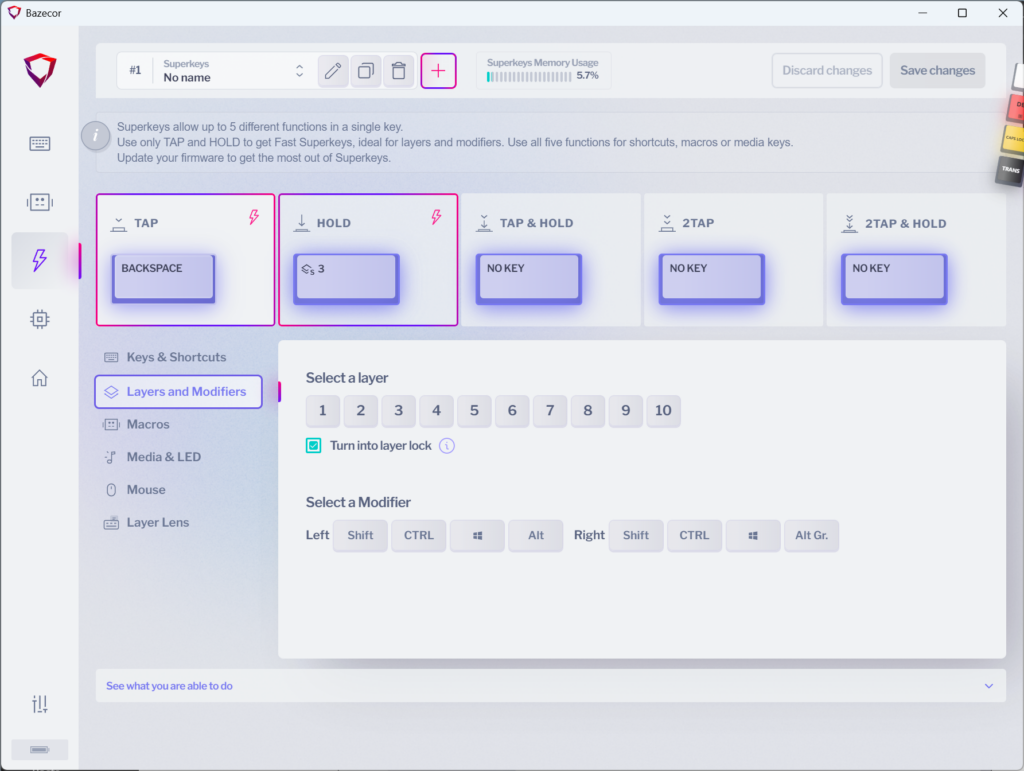
However, there is a documented limitation: Dygma allows Layer Shift as a Hold action, but not as a Tap action. This restriction should be taken into account during the planning stage. Not every function can be used in every one of the five Superkey slots.
The combination of space bar and Layer Shift can be particularly useful on the thumb keys of the Raise, Raise 2, or Defy. Whether it suits an individual typing style depends on the Hold timing and the way the space bar is used. Rapidly repeated spaces, games, or applications that require the space bar to be held may conflict with this multi-function assignment. A Superkey should therefore not only appear logical on paper, but should also be tested in the exact applications for which the layout is intended.
Backspace and Delete on one key
A straightforward combination would be:
- Tap: Backspace
- Double Tap: Delete
Backspace remains accessible with a single press. Delete requires two quick inputs and therefore does not need its own key on the base layer.
This example is particularly suitable for adjusting the Double Tap timing window. If Delete is not recognised often enough, the interval between both keypresses is probably outside the configured window. If Delete appears accidentally during two normal Backspace inputs, the timing window may be too generous.
Personal typing habits are once again the decisive factor. A universal numerical value would be convenient, but it would not be reliable. Typing speed, keypress duration, and habits vary significantly.
Combining Superkeys with macros
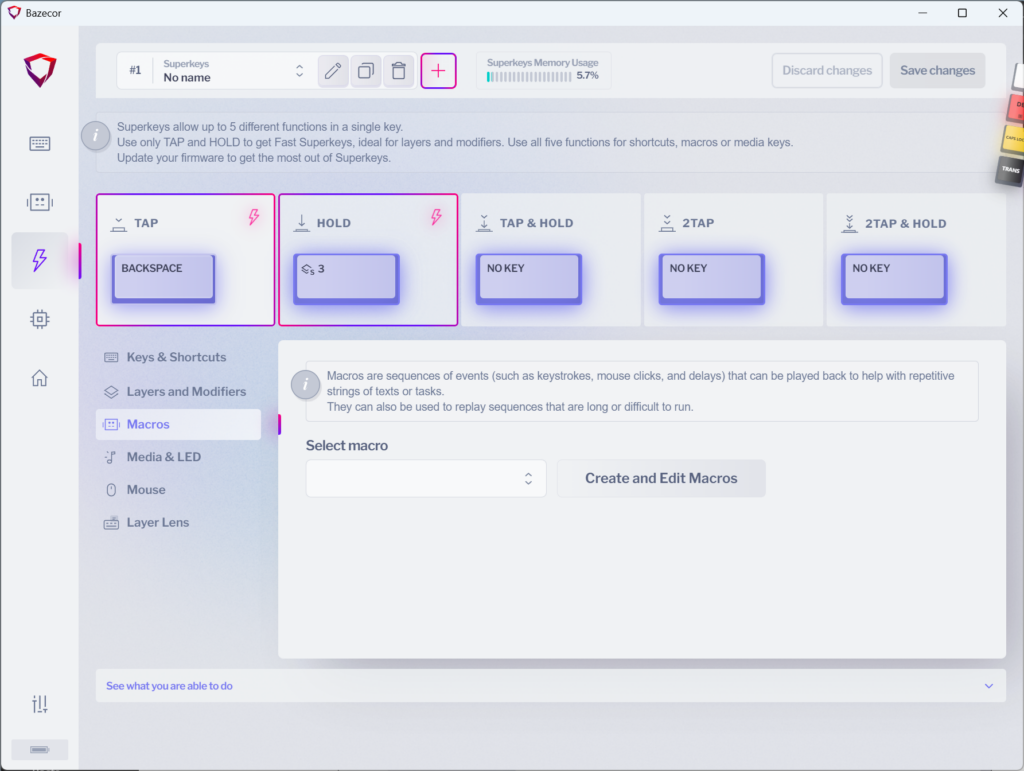
According to Dygma, every Superkey trigger can also contain a macro. A previously created sequence can therefore be assigned to Double Tap or Double Tap and Hold.
The Superkey does not necessarily store the complete input sequence itself. Instead, it refers to a macro created in the Macro Editor. This separation keeps the configuration more organised and allows the same macro to be used in several places.
One example could be a regularly used shortcut:
- Tap: regular key
- Hold: modifier
- Double Tap: macro
This combination should still be used carefully. Text macros containing passwords or other sensitive information do not belong in a keyboard configuration. Even locally stored input sequences can accidentally be triggered in the wrong window or overlooked when a configuration is shared with somebody else.
Limitations of Superkeys
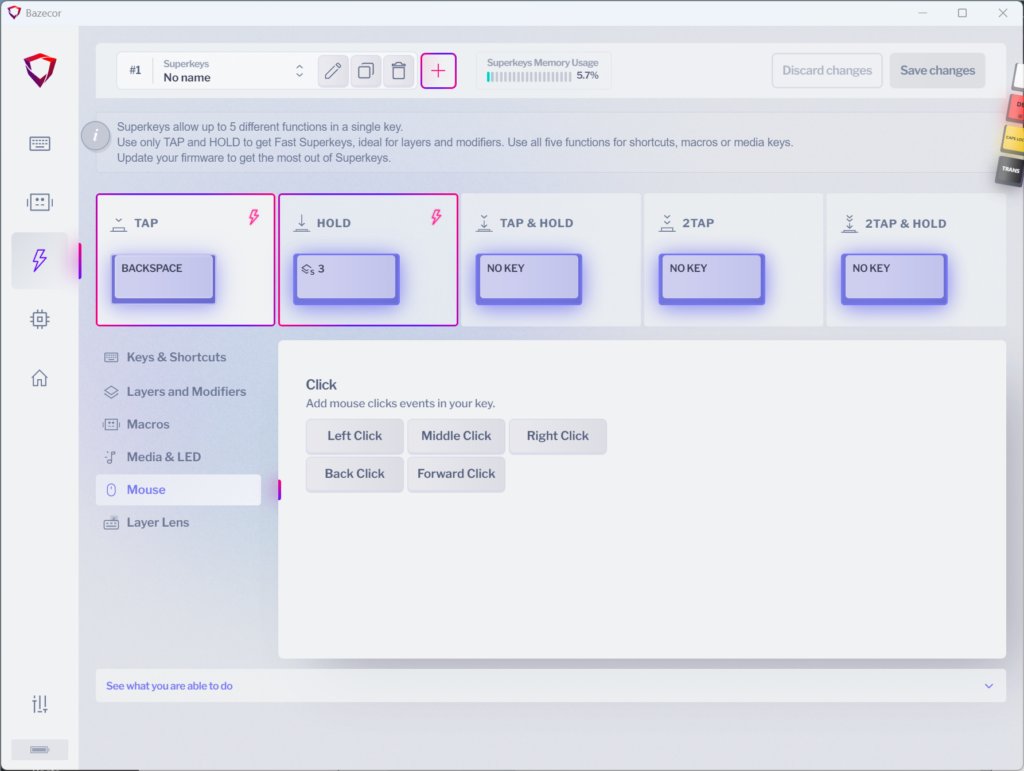
Superkeys significantly expand the keyboard’s capabilities, but they have documented limitations. In addition to the previously mentioned restriction involving Layer Shift, mouse functions inside Superkeys only support clicks and mouse movement. The scroll wheel cannot be controlled through them.
There is also the unavoidable delay caused by the recognition of different keypress sequences. The more patterns a key has to distinguish, the longer the firmware may wait for an unambiguous input. This can be particularly noticeable with letters and other keys used in rapid succession.
There are also special cases outside normal typing. Dygma points out, for example, that the number row should contain regular number keys during Bluetooth pairing. Superkeys or numpad number codes can interfere with entering the displayed pairing code. If the number row normally uses Superkeys, Dygma recommends creating a separate layer with ordinary numbers for the pairing process.
These limitations do not speak against Superkeys. They simply show that multi-function assignments should be planned carefully. A screwdriver is not a bad tool merely because eating soup with it would be rather laborious.
Typical configuration mistakes
The most common source of errors is an overly complex first Superkey. Five assigned input patterns may look impressive in the editor, but they make troubleshooting more difficult. If an action does not work reliably, it is initially unclear whether the trigger, the timing window, the actual function, or an overlap with another assignment is responsible.
A better starting point uses Tap and Hold. Double Tap or further patterns should only be added once both variants work reliably.
A second source of error is unclear naming. Bazecor stores names in backups rather than directly on the keyboard. Clear labels therefore make both management and restoration on another computer easier.
The third classic mistake is forgetting to save. Changes made in the editor only become active after they have been transferred to the keyboard. Before major changes, exporting the complete configuration is also recommended. Bazecor creates automatic backups during saving, but a deliberately named backup file remains easier to find before extensive experimentation.
Expanding Superkeys step by step
A working Superkey can remain deliberately unspectacular at first. Escape on Tap and Ctrl on Hold are enough to understand the concept. After a few days, it becomes clear whether the Hold timing is suitable and whether the selected position makes sense in daily use.
Double Tap can then be added. Tap and Hold or Double Tap and Hold should only follow where there is a genuine need. This gradual approach prevents the entire layout from changing its operating logic all at once.
Muscle memory plays a greater role with ergonomic keyboards than the theoretical number of available functions. A good assignment disappears from conscious thought after a short adjustment period. The intended action happens without having to search actively for its exact position.
If every keypress still requires a brief internal meeting, the configuration may simply have been too ambitious. Even a Superkey does not have to prove how many tasks it could theoretically carry.
Preparing for further work with Bazecor
Superkeys are the next logical step after the basic setup of Bazecor and the reassignment of individual keys. The previous guide to the Layout Editor provides the necessary foundation: selecting layers, choosing keys, opening the function area, assigning commands, and saving changes.
Superkeys do not replace this principle, but expand it. Instead of assigning one individual function, the Layout Editor now assigns a previously created multi-function configuration. The familiar workflow remains intact, while the possible outcomes of a keypress increase.
Before making larger changes, another quick check is worthwhile:
Is the correct layer selected?
Does the Superkey have a clear name?
Are only the input patterns that are actually needed assigned?
Has a current backup been created?
Do the timing values match the user’s typing behaviour?
Once these points have been clarified, the configuration remains manageable. Superkeys then feel less like a secret discipline for keyboard alchemists and more like what they actually are: a flexible tool for adding useful additional tasks to individual keys.
Note in accordance with EU transparency requirements:
The Dygma Raise, Dygma Raise 2, and Dygma Defy used in this guide were provided to us by Dygma as non-binding loan units for testing and documentation purposes. This is not paid advertising.
Dygma had no influence on the content or editorial independence of this article. All explanations and configuration steps are based on the practical use of the hardware and the manufacturer’s official documentation.
We would like to sincerely thank Dygma for providing the keyboards and for the trust placed in DataHolic.de.